Brightspace
Quizzes — Using the Question Library
Recommended Best Practices

- Always create questions in the Question Library first – questions created directly in quizzes are not automatically saved to the library
- Organize questions in sections (folders) before creating them – makes importing into quizzes seamless
- Use descriptive section names that match your course structure (e.g., “Chapter 3: Cell Biology” or “Midterm – Unit 1”)
- Import questions from existing quizzes to the Question Library as backup in case quizzes are deleted
- Create the Question Library structure at the start of term, even if you haven’t written all questions yet
Why Use the Question Library?
Watch this video for an overview of the benefits:
Key benefits:
- Reusability: Use the same questions across multiple quizzes, surveys, or self-assessments
- Organization: Keep questions organized by topic, difficulty, or type
- Backup: Questions stored in the library are preserved even if quizzes are deleted
- Efficiency: Update a question once in the library and it updates everywhere it’s used
- Easy import: Import entire sections into quizzes rather than adding questions one-by-one
- Version control: Create multiple versions of similar questions for randomization
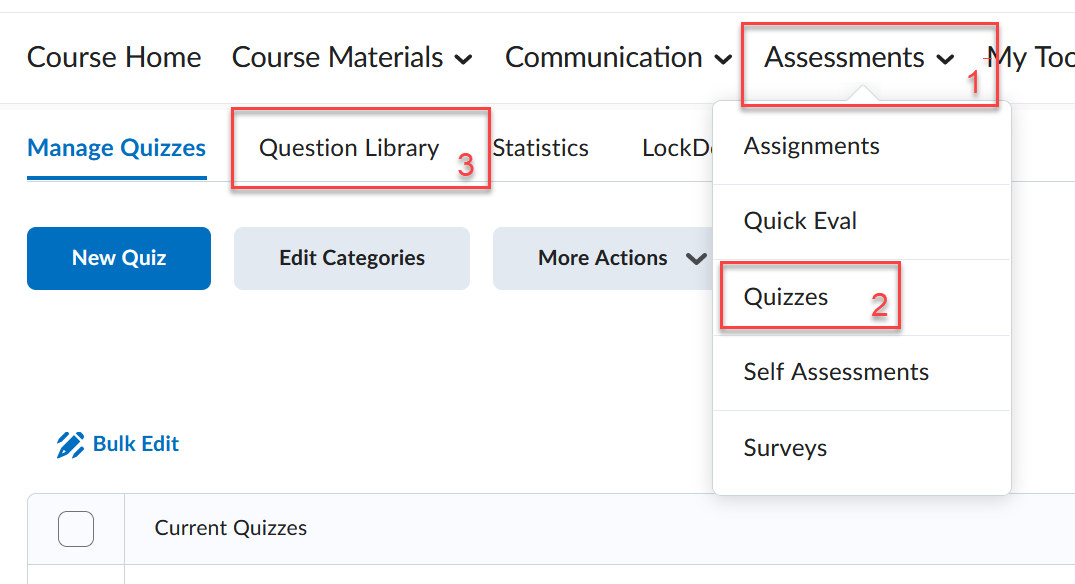
Accessing the Question Library
- Go to Tools > Quizzes
- Click the Question Library tab
Setting Up Your Question Library
Step 1: Create sections to organize questions
What are sections? Sections are folders that help you organize questions. You can create sections and subsections (folders within folders) to match your course structure.
Common organizational strategies:
- By chapter or unit: “Chapter 1,” “Chapter 2,” etc.
- By topic: “Newton’s Laws,” “Friction,” “Spring Forces”
- By assessment: “Midterm,” “Final Exam,” “Weekly Quizzes”
- By question type: “Multiple Choice,” “Short Answer,” “Calculations”
- By difficulty: “Easy,” “Medium,” “Hard”
To create a section:
Watch this video:
Or follow these steps:
- In the Question Library, click New > Section
- Enter a Section Name (this helps you identify the folder)
- Optional settings:
- Message: Add introductory text that appears when this section is imported into a quiz
- Display options: Choose whether to show the message at the beginning of the section or before each question
- Add image: Include an image that appears with the section
- Private comments: Add notes for your own reference (students never see these)
- Click Save
To create subsections (folders within folders):
- Click on the parent section name to open it
- Click New > Section
- Follow the same steps as above
Step 2: Create questions in sections
- Click on the section name where you want to add questions
- Click New and select a question type from the dropdown
- Fill in the question details
- Click Save
Watch this video for an overview of available question types:
Available question types:
- True/False (T/F): Two-option questions
- Multiple Choice (MC): One correct answer from multiple options
- Multi-Select (MS): Multiple correct answers possible
- Written Response (WR): Long-answer questions requiring manual grading
- Short Answer (SA): Brief text responses
- Fill in the Blanks (FIB): Complete missing words or phrases
- Matching (M): Connect items in two columns
- Ordering (ORD): Arrange items in correct sequence
- Arithmetic (A): Math calculations with automatic grading
- Significant Figures (SF): Math with precision requirements
- Likert (LIK): Scale-based responses (for surveys)
For detailed instructions on creating each question type, see D2L’s guide to creating questions.
For pedagogical guidance on choosing question types, see Memorial University’s resource on Question Types.
Step 3: Import questions from existing quizzes (if applicable)
Why import questions from quizzes? Questions created directly in quizzes are NOT automatically saved to the Question Library. Import them to create a backup and enable reuse.
To import questions from an existing quiz:
- In the Question Library, click on the section where you want to store the questions
- Click Import > Browse Existing Questions
- Change the Source dropdown to the quiz containing the questions you want
- Check the boxes next to questions or sections you want to import (or check the top box to select all)
- Click Import
- Repeat for other quizzes as needed
- Click Done Editing Questions when finished
Important Note
Importing questions from another course
To import questions from another course’s Question Library:
Watch this video:
Brief steps:
- Go to Course Admin > Import/Export/Copy Components
- Select Copy Components from Another Course
- Choose the source course
- Select Question Library
- Choose which sections to import
- Complete the import
This is useful when teaching the same course in multiple terms or sharing questions with colleagues.
Question Library Organization Tips
Managing and moving questions
To move questions between sections:
- In the Question Library, check the boxes next to questions you want to move
- Click the Move button
- Select the destination section
- Click Move
To move entire sections:
- Check the box next to the section you want to move
- Click Move
- Select where you want to place it (inside another section or at the top level)
- Click Move
To delete questions or sections:
- Check the boxes next to items you want to delete
- Click Delete
- Confirm the deletion
Important: Deleting questions from the Question Library does NOT remove them from quizzes where they’re already being used.
Creating question variants for randomization
Why create variants? Multiple versions of similar questions prevent students from sharing answers and reduce memorization of specific wording.
Strategy:
- Create a question in your section
- Click on it to edit
- Click Copy
- Modify the copied question (change numbers, rearrange options, adjust wording)
- Save the variant
- Repeat to create 2-4 variants of each question
When you import the section into a quiz, you can set Brightspace to randomly select one variant for each student.
Adding titles and descriptions to questions
Question titles:
- Visible only to you in the Question Library (students never see them)
- Help you identify and organize questions
- Not required, but recommended for easy searching
- Example: “Ch3_Photosynthesis_MC_Easy_v1”
To add a title to question types without a title field:
- When creating/editing the question, click Options
- Click Add Short Description
- Enter your title
Question text:
- This is what students see
- Can include formatted text, images, videos, and links
- Use the text editor to format and add media
Further Resources
- Creating Question Library questions (D2L documentation)
- Question Types in Brightspace: Benefits and challenges (Memorial University)
- Quiz Question Types (Langara EdTech)
Using Question Library in Quizzes

Contact edtech@langara.ca for more information.