Chapter 2. Security Tuneup
2.4 Tap Interface and Captured Traffic
Learning Objectives
- Identify Tap Interface
- Configure Tap Interface
- Capture the Traffic under TAP interface
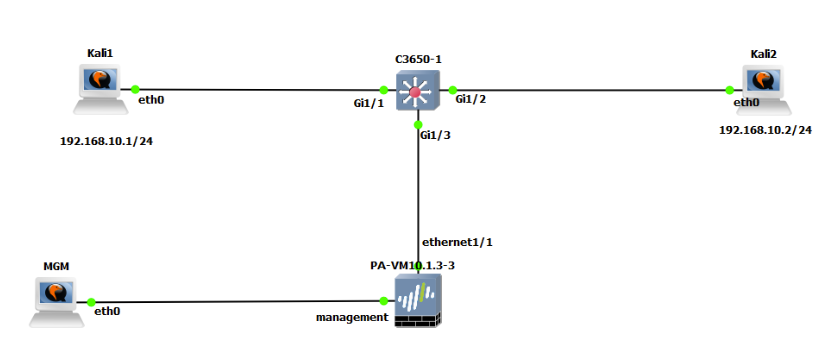
| Device | Configuration |
| Palo Alto | Ethernet 1/1: TAP
Management: 192.168.1.1/24 |
| MGM | 192.168.1.1/24 |
| Kali-1 | 192.168.10.1/24, GW: 192.168.10.3 |
| Kali-2 | 192.168.10.2/24, GW: 192.168.10.3 |
| Switch | Gi 1/1 and Gi 1/2 source monitor
Gi1/3 destination monitor |
Zones
| Parameters | Value |
| TAP | Ethernet 1 /1 |
What is the TAP interface?
A network tap is a mechanism that allows visibility into data traversing a computer network. In a tap mode deployment, traffic is passively observed using a switch SPAN or mirror port, which copies network traffic without impacting normal data flow. By configuring a dedicated firewall interface in tap mode and connecting it to a switch SPAN port, the firewall receives a mirrored copy of the traffic for analysis. This approach enables application-level visibility across the network while keeping the firewall out of the direct traffic path.
Deploying a firewall in tap mode allows organizations to gain insight into the applications and potential threats present on the network without modifying the existing network architecture. While the firewall can detect and identify security threats in this mode, it cannot enforce security actions—such as blocking malicious traffic or applying QoS policies—because the traffic does not pass directly through the firewall.
Cisco Switch Configuration
(conf t) # int vlan 1
         #ip address 192.168.10.3 255.255.255.0
(conf t) #monitor session 1 source interface gi1/1
(conf t) #monitor session 1 source interface gi 1/2
(conf t) #monitor session 1 destination interface gi1/3
Go to Monitor > Packet Capture > Configure Capturing. Enable this item and Add Stage Packet Capture
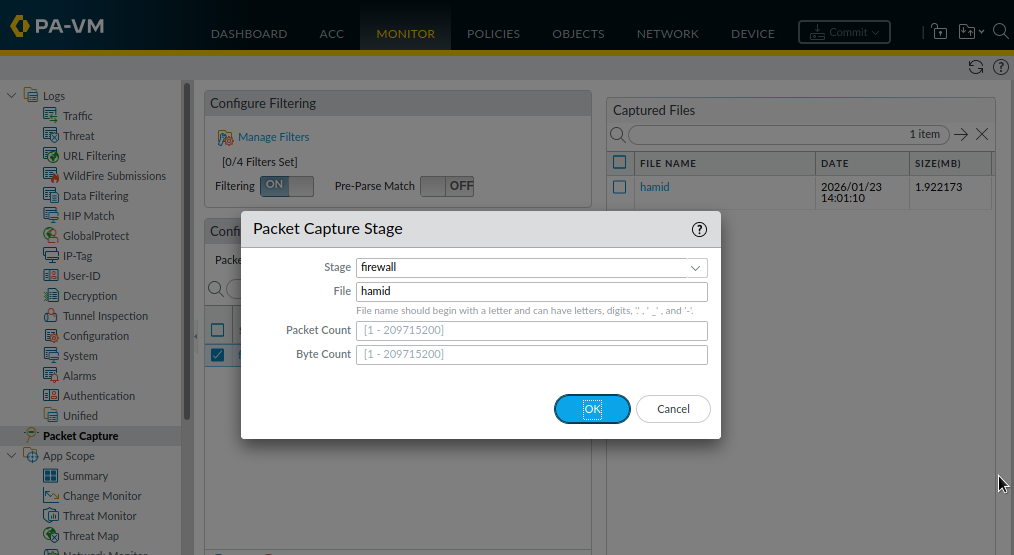
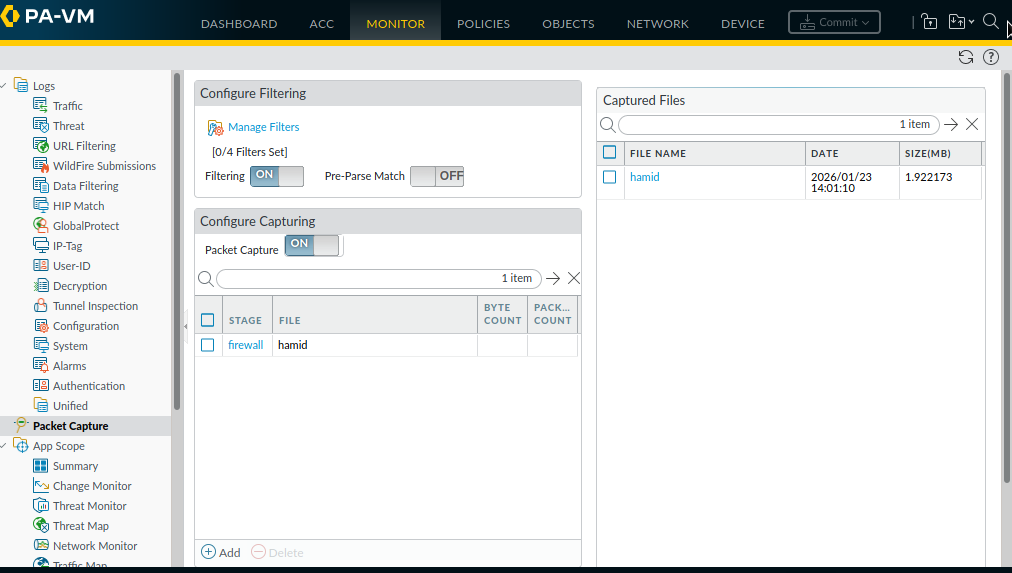
All Palo Alto Networks firewalls have a built-in packet capture (pcap) feature you can use to capture packets that traverse the network interfaces on the firewall. You can then use the captured data for troubleshooting purposes or to create custom application signatures.
Now, ping from Kali1 to Kali2 again and check the file created in the previous step. Click on the traffic to download in Kali and you are able to open it in Wireshark. Open the file in the Wireshark and verify you have received ICMP Packets.
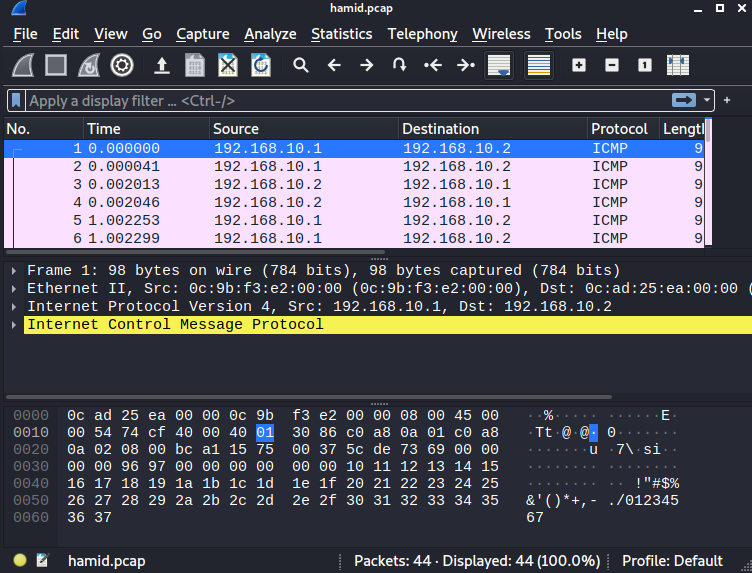
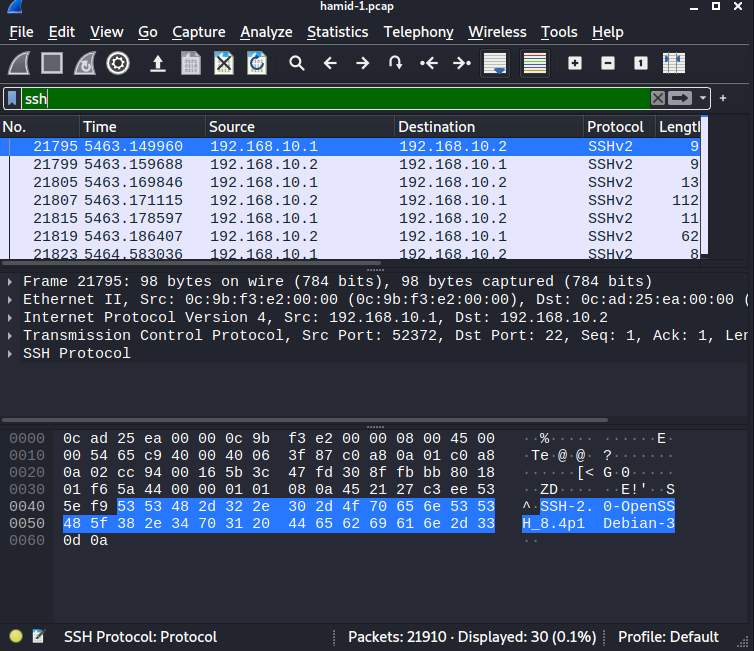
SSH from Kali1 to Kali 2. Capture the traffic and verify you have received SSH Packets in the Wireshark.